Are you preparing for launching An Androidapp on the Google Play Store? Publishing critical mobile application requires more than just exporting an APK or Android App Bundle (AAB).
Google has established strict security, privacy, quality, and policy requirements to ensureusers receive safe and reliable applications. For enterprise applications like OceanCRM, proper planning before submission can significantly reduce the chances of store rejection and speed up the review process.
This case study outlines the complete process we followed while preparing Ocean CRM for release on Google Play. It is enriched with practical technical snippets, checklists, andcompliance requirements to help you succeed.
Table of Contents :
Why Planning for Launching an Android App Matters
Many developers assume that publishing an Android application is simply a matter of generating a build and uploading it.
In reality, Google evaluates several aspects of your app before approving it for public release:
- User privacy: Protecting PII (Personally Identifiable Information) and sensitive data.
- Data collection transparency: Ensuring users know what data leaves their device.
- Security implementation: Encrypted network communications and secure local storage.
- Application quality: Fluid interfaces, absence of crashes, and responsive threads.
- Store listing accuracy: Preventing misleading metadata, claims, or graphics.
- Performance: Minimizing app size, CPU cycles, and battery overhead.
- Policy compliance: Adhering to Families policies, financial disclosures, and account access mandates.
Skipping any of these steps can lead to delayed reviews, update rejections, or account suspension.
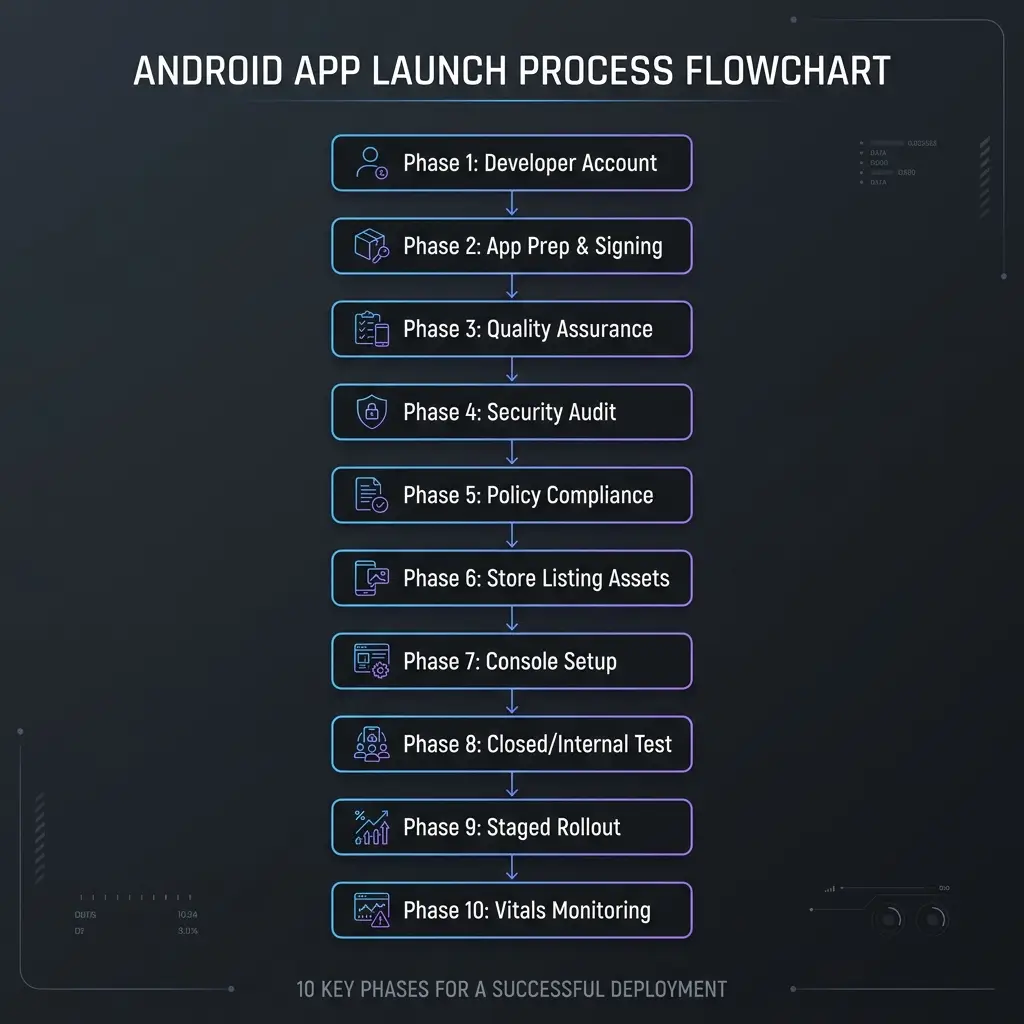
Phase 1 – Creating the Google Play Developer Account
The first step is obtaining access to the Google Play Console.
Create a Developer Account
Visit the Google Play Console and register using your organization’s Google account.
During registration, you must:
- Choose an Organization Account: Organization accounts are verified using a D-U-N-S (Data Universal Numbering System) Number and require legal entity verification. For enterprise apps like Ocean CRM, this is mandatory to establish trust.
- Complete identity verification: Submit government-issued ID or official incorporation documents.
- Verify your business details: Provide utility bills or business registry lookups matching your physical address.
- Pay the fee: Pay Google’s one-time developer registration fee of $25 USD.
Using an Organization account is recommended for business applications because it improves trust and allows multiple team members to manage releases securely via granular IAM roles.
Phase 2 – Technical Prep for Launching an Android App
Before generating the release build, verify that your application is production-ready.
Finalize the Package Name
Your package name uniquely identifies your application. It acts as the application ID inside the compilation configuration:
com.oceantechnolab.oceancrm
Once the application is published, this package name cannot be changed. Ensure it matches your branding and corporate structure.
Configure Versioning
Every release must contain a distinct configuration in your app/build.gradle file:
- Version Name (visible to users): E.g.,
"1.0.0". - Version Code (used internally by Google Play): An integer incremented with every build (e.g.,
1,2,3).
Target the Latest Android SDK
Google requires applications to target a recent Android API level (typically within 1 year of the latest release).
Keeping your target SDK updated ensures better security, access to modern Android features, and continued Play Store compatibility.
Generate a Release Build
Always generate a production release instead of uploading a debug build.
The recommended output is the Android App Bundle (.aab). App Bundles compile code and resources into an archive, allowing Google Play to generate optimized, device-specific APKs. This reduces download size by up to 50%.
Configure App Signing
Google strongly recommends enabling Play App Signing.
Under this system, you generate an Upload Key in Android Studio. Google Play uses your upload key to verify your identity, then resigns your app with a secure, cloud-stored App Signing Key for final store distribution.
Caution: Losing your upload key can complicate updates, requiring you to contact Google Play Support to reset your upload credentials.
Secure Network Communication
Ensure that all API requests use HTTPS and that SSL certificates are valid and match standard certificate authorities.
For Ocean CRM, all communication between the mobile application and the backend API should be encrypted. For example, ensure your mobile client mirrors the secure configurations established on the web frontend client, such as those configured in the CRM’s shared Axios client at index.ts.
If you connect to custom endpoints, specify a Network Security Configuration file (network_security_config.xml) in your resource directory to enforce HTTPS traffic:
Phase 3 – Quality Assurance & Testing Matrix
Publishing should only begin after thorough testing.
Functional Testing
Verify all core business features:
- User login: Check token storage, session refresh, and multi-factor authentication.
- Dashboard: Verify layout responsiveness, metrics rendering, and data synchronization.
- Lead Management: Test filters, creation modals, stage moves, and editing flows.
- Customer Management: Verify customer profiles, contact list lookups, and metadata updates.
- Task Management: Test task statuses, due date alarms, and assignee assignments.
- Appointments: Check timezone conversions and sync states with calendar systems.
- Reports: Ensure graphical deal charts render smoothly without blocking main threads.
- Search: Test local and server-side global queries.
- Notifications: Ensure push notifications trigger correctly on background and foreground states.
- User Profile: Verify profile updates, avatar changes, and account password updates.
Each feature should behave consistently on multiple Android devices with varying screen sizes and OS levels.
Error Handling
Users should receive clear messages when something goes wrong.
Test scenarios like internet disconnected, invalid credentials, API failures, session expiration, and server maintenance. Applications should fail gracefully without crashing.
Performance Testing
Evaluate:
- Startup time: Keep cold start times under 2 seconds.
- Memory usage: Inspect for memory leaks using tools like LeakCanary.
- Battery consumption: Verify background processes go to sleep when the app is paused.
- Smooth scrolling: Avoid blocking the main UI thread during intensive list rendering.
- Large dataset handling: Implement pagination on lists to avoid out-of-memory errors.
Performance directly affects user ratings, search rankings, and uninstall rates.
Phase 4 – Mobile App Security and Compliance
Business applications often manage sensitive customer information. A security audit before release is essential.
Review App Permissions
Only request permissions that are necessary. Declare them explicitly in your AndroidManifest.xml file.
Typical permissions for a CRM application include:
android.permission.INTERNET: For API requests.android.permission.CAMERA: If document uploads or business card scanning are supported.android.permission.POST_NOTIFICATIONS: For transaction alerts (Android 13+ requirement).android.permission.READ_MEDIA_IMAGES: If custom avatar selections are supported.
Avoid requesting unnecessary permissions such as location (ACCESS_FINE_LOCATION) or hardware access unless they are integral to the application’s core functionality.
Protect Sensitive Information
Ensure that API keys, passwords, and signing keys are not hardcoded in Java/Kotlin classes.
Additionally, authenticate tokens securely in the Android Keystore system (e.g., using EncryptedSharedPreferences). Ensure development, staging, and local mock endpoints are removed, and debug logging statements are stripped during the release build.
Phase 5 – Meeting Google Play Policies
Policy compliance is one of the most important parts of the release process.
Privacy Policy
A publicly accessible Privacy Policy is required if your application collects user information.
It should clearly explain:
- What data is collected.
- Why the data is collected.
- How the data is stored.
- Whether data is shared with third parties.
- User rights regarding their data.
Data Safety
The Play Console requires developers to complete a Data Safety form.
You must accurately disclose:
- Personal information collected (email, name, phone).
- Device information (IP address, device identifiers).
- Crash reporting and diagnostic data (Crashlytics, ANR traces).
- Data encryption practices (data must be declared encrypted in transit if using HTTPS).
- Data sharing practices.
Providing inaccurate information may result in application removal or suspension.
Account Deletion
Google requires users to have a way to delete their account if they can create one.
For Ocean CRM, a practical implementation is:
App Settings → Account → Delete Account
The application redirects users to a secure page on the Ocean CRM website where they can authenticate, review the consequences of deletion, and permanently remove their account according to the Privacy Policy. Additionally, provide a web link in the Google Play Console Console Data Safety section matching this flow for non-app users.
Terms and Support
In addition to a Privacy Policy, publish:
- Terms & Conditions
- Support page
- Contact information
- Frequently Asked Questions (optional)
These resources improve transparency, build user confidence, and satisfy store reviewers.
Phase 6 – Preparing the Google Play Store Listing
Your Play Store listing is the first impression users have of your application.
Prepare the following assets:
- App Name: Keep it under 30 characters.
- Short Description: An 80-character summary.
- Full Description: Up to 4,000 characters highlighting benefits, key features, and corporate support contact.
- High-quality screenshots: Minimum 4 screens showing core functionality (e.g., lead management, dashboards) matching standard dimensions (
16:9or9:16aspect ratio). - Feature graphic: A
1024 x 500 pxbanner displayed at the top of your store page. - Application icon: A clean
512 x 512 px32-bit PNG asset. - Contact information: A valid support email address.
Professional screenshots that highlight key features significantly improve conversion rates.
Phase 7 – Configuring Google Play Console Settings
Complete every required section before submitting for review.
This includes:
- Data Safety Questionnaire.
- Privacy Policy URL.
- App Content declarations (declaring targeting age ranges, target audiences, and categories).
- Content Rating questionnaire (obtain your IARC certificate).
- Ads declaration.
- App Access Credentials: If your application requires authentication, provide Google reviewers with a working demo username and password, along with instructions to test the app without getting locked out.
Phase 8 – Beta Testing Prior to Launching an Android App
Instead of releasing directly to all users, use Google Play’s testing tracks.
Internal Testing (Up to 100 testers) ──> Closed Testing (Minimum 20 testers for 14 days) ──> Production Release
Internal Testing
Ideal for developers and QA engineers.
Validate installation and package integrity, login security, core workflows, and API connectivity.
Closed Testing
Invite a broader group of testers to identify issues across different devices and Android versions.
Collect feedback related to bugs, rendering lag, user experience, and stability. Address all critical issues before moving to production.
Phase 9 – Managing the Production Release
When testing is complete, create a production release.
A staged rollout is recommended.
Example:
- 10% of users (Day 1)
- 25% of users (Day 2-3)
- 50% of users (Day 4-5)
- 100% of users (Day 7+)
Gradual rollouts allow you to monitor crashes and user feedback before exposing the update to all users.
Phase 10 – Post-Launch App Maintenance
Publishing the application is only the beginning of launching an Android app.
Continue monitoring:
- Crash reports: Keep your crash-free user rate above 99.5%.
- ANRs (Application Not Responding events): Monitor the Play Console’s Android Vitals. Google penalizes search visibility if your ANR rate goes above 0.47%.
- User ratings: Respond to reviews, troubleshoot reported bugs, and improve functionality.
- Reviews: Flag and resolve usability reports.
- Analytics: Check user retention and event pipelines.
- Performance metrics: Track app start time and frame rate latency.
Regular updates should include bug fixes, security patches, Android compatibility updates, and performance improvements.
Common Rejections When Launching an Android App
Understanding common rejection reasons helps avoid unnecessary delays.
| Rejection Reason | Prevention Method |
|---|---|
| Missing Privacy Policy | Host a clear policy page on your website and add the link in the Play Console. |
| Incorrect Data Safety declarations | Declare all collected data, third-party trackers, and network encryption. |
| Missing account deletion option | Implement an in-app account deletion setting and provide an external web form link. |
| Excessive permissions | Remove unnecessary permission nodes from your manifest. |
| Broken login or inaccessible demo account | Double-check the test credentials you provided in the App Access settings. |
| Crashes during review | Test release builds using R8 code shrinking locally before uploading. |
| Misleading screenshots or descriptions | Avoid using placeholders, promotional slogans, or unrelated imagery in store assets. |
| Debug builds submitted | Compile and sign your final build using your release keystore configuration. |
Reviewing these areas before submission greatly improves approval chances.
Need Help Deploying Your Mobile App?
Developing and launching a secure, compliant Android application can be complex. At Ocean Technolab, we offer end-to-end mobile application development services, from UX/UI design and secure backend engineering to App Store Optimization and deployment support.